Guide
Set up your Loungr
From a fresh box to watching in a few minutes. You'll power it on, sign in using your phone, and connect your streaming service.
-
1
Plug in and power on
Connect your Loungr box to your TV's HDMI port and to power. Connect to the internet with an Ethernet cable (best for live TV) or Wi-Fi. After a moment you'll see the Loungr home screen.
-
2
Sign in from your phone
Open Loungr TV on the box. It shows a short code. On your phone or computer, go to loungr.tv/device-auth, enter that code, and confirm. No typing passwords with the remote.
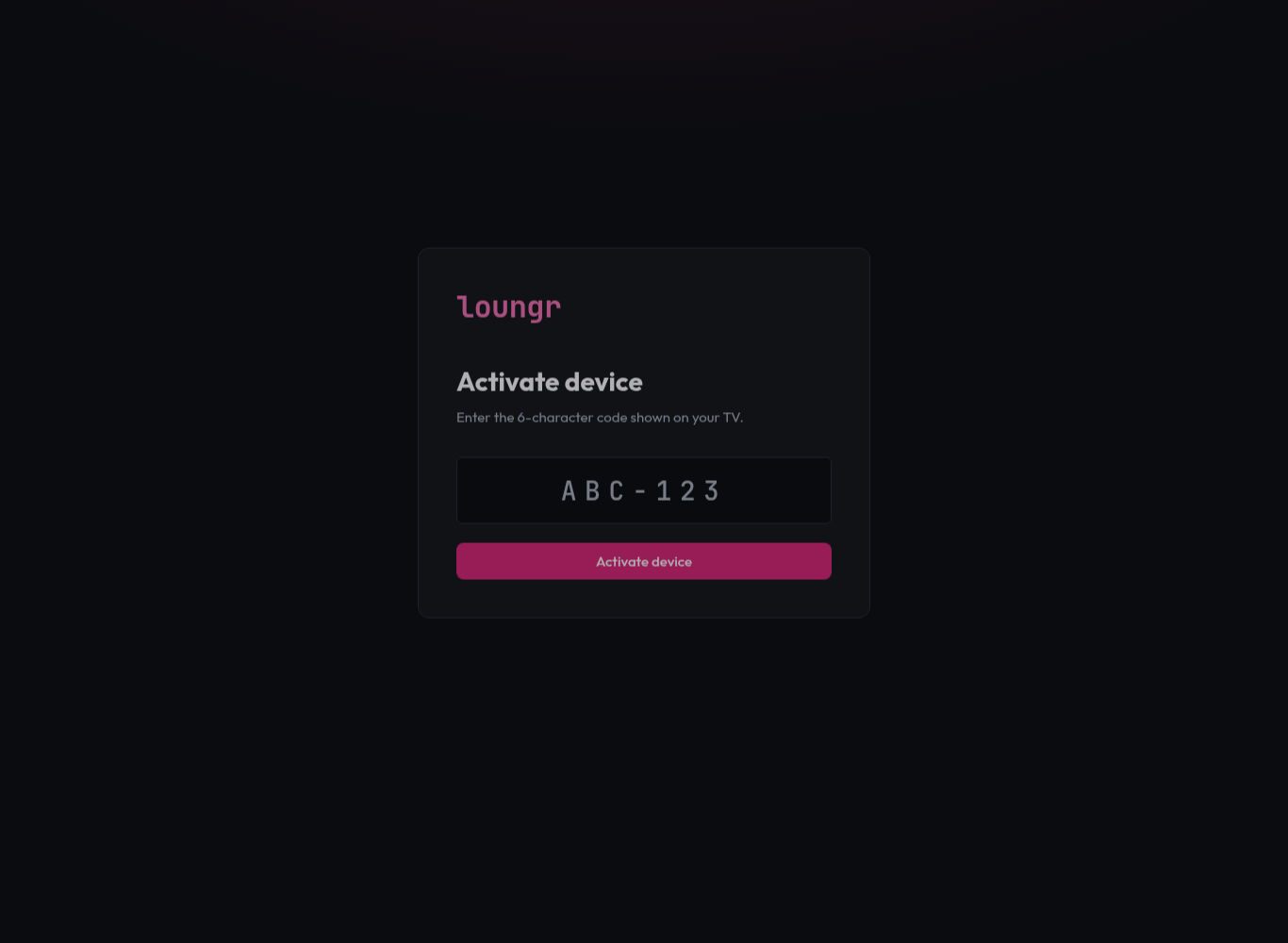
Enter the code from your TV at loungr.tv/device-auth.
-
3
Create your profile
Pick a name for your profile. Profiles keep everyone's Continue Watching and watchlist separate - you can add more later.
-
4
Connect your service
Open your Loungr dashboard, go to TV settings, and add your service's login under Provider logins:
- Server, username and password - the three things your service gave you when you subscribed
- Or, if your service sent you a link instead, paste that
Add it, and your channels and library appear on the box within a minute or two.
You only enter it once - Loungr keeps it in sync across your devices. If your service gives you more than one login, add each one: every login is another TV (or another game in multiview) your home can watch at the same time.
-
5
Start watching
That's it. Browse Live, Movies, and Series from the home screen, and pick up right where you left off under Continue Watching.